
The center of the app is the FAP, organized like the real A320 panel.
Cabin Status
This is the home page: a cabin summary in five columns, Audio, Lights, Doors/Slides, Temperature and Water/Waste. From any page, the Cabin Status button brings you back here.
System pages
The bottom bar opens each page: Audio, Lights, Doors/Slides, Temp, Water/Waste, Smoke Detect and System Info. The arrows show a second group with Cabin Prog, Layout Select, Level Adjust, SW Download and FAP Set Up.
Next to the bar are Screen Off, Cabin Ready and Cabin Status, and at the top left the CAUT button, which lights up when there is a pending caution.
Bottom sub-panel
Below the FAP is the row of buttons from the real panel: EMER (emergency lights), LIGHTS MAIN ON/OFF, LAV MAINT, SCREEN 30 sec LOCK, EVAC CMD, EVAC RESET and SMOKE RESET. You can hide it in the Configurator if your physical cabin already has these controls.
AIP and ACP
To the right of the FAP are the ACP (Area Call Panel) at the top, with color-coded call lights, and the AIP (Attendant Indication Panel) at the bottom, which shows the source of each call or alert as text. When you simulate a call or a smoke alert, all three panels react at once.
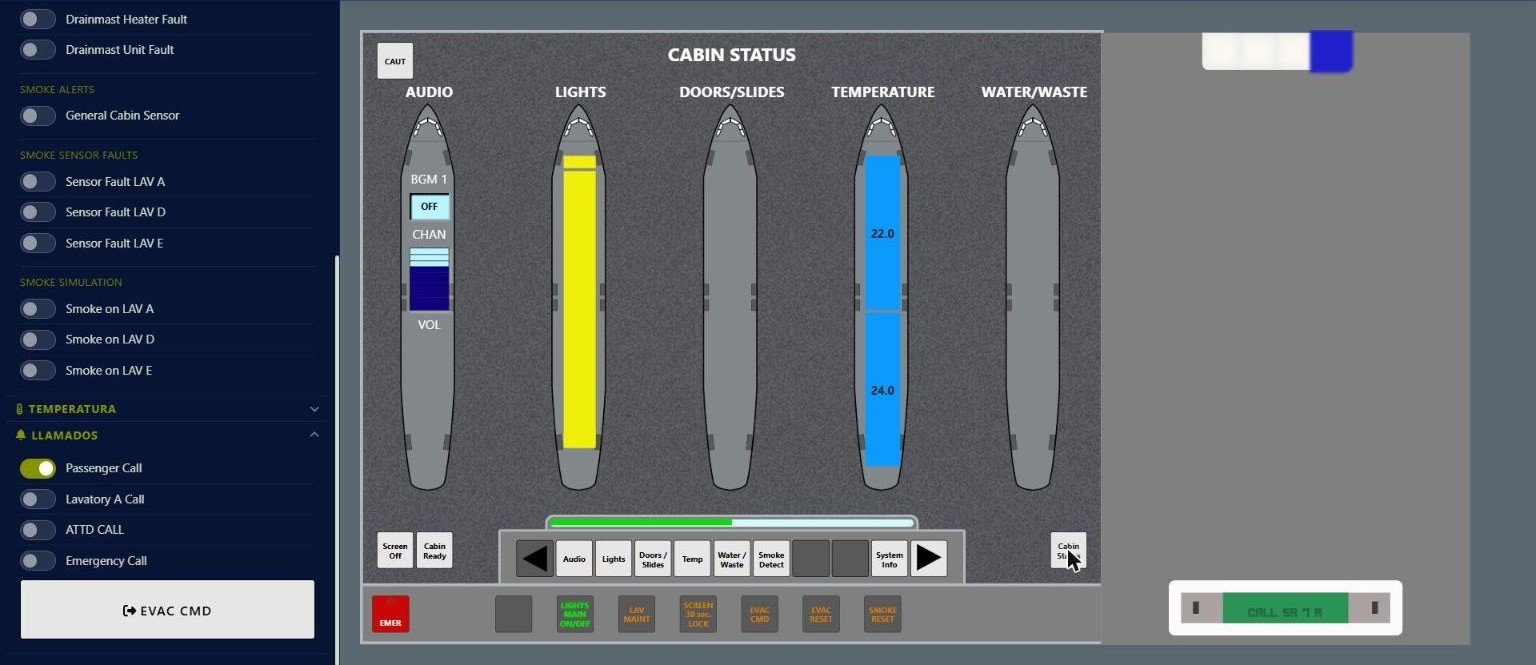
A passenger call lights the blue ACP light and appears on the AIP.