A320 FAP Trainer - User guide

User guide for the Flightdemy A320 FAP Trainer: how to open the app from My Apps, how the FAP screen works with the AIP and ACP, how to set up scenarios with the sidebar (doors, calls, faults, smoke) and how to customize your trainer in the Configurator.

Updated: 18/11/2026

What the A320 FAP Trainer is

The A320 FAP Trainer is an app that simulates the Airbus A320 Flight Attendant Panel (FAP), the panel the cabin crew uses to control and monitor the cabin systems: audio and announcements, lights, doors and slides, temperature, water and waste, and smoke detection. It runs in the browser with nothing to install, and it also recreates the AIP (Attendant Indication Panel) and the ACP (Area Call Panel).

With the app you can practice operating the FAP and, from its sidebar, set up training scenarios: change door states, simulate passenger or crew calls, introduce faults and trigger smoke alerts, and see each panel react as in the real aircraft.
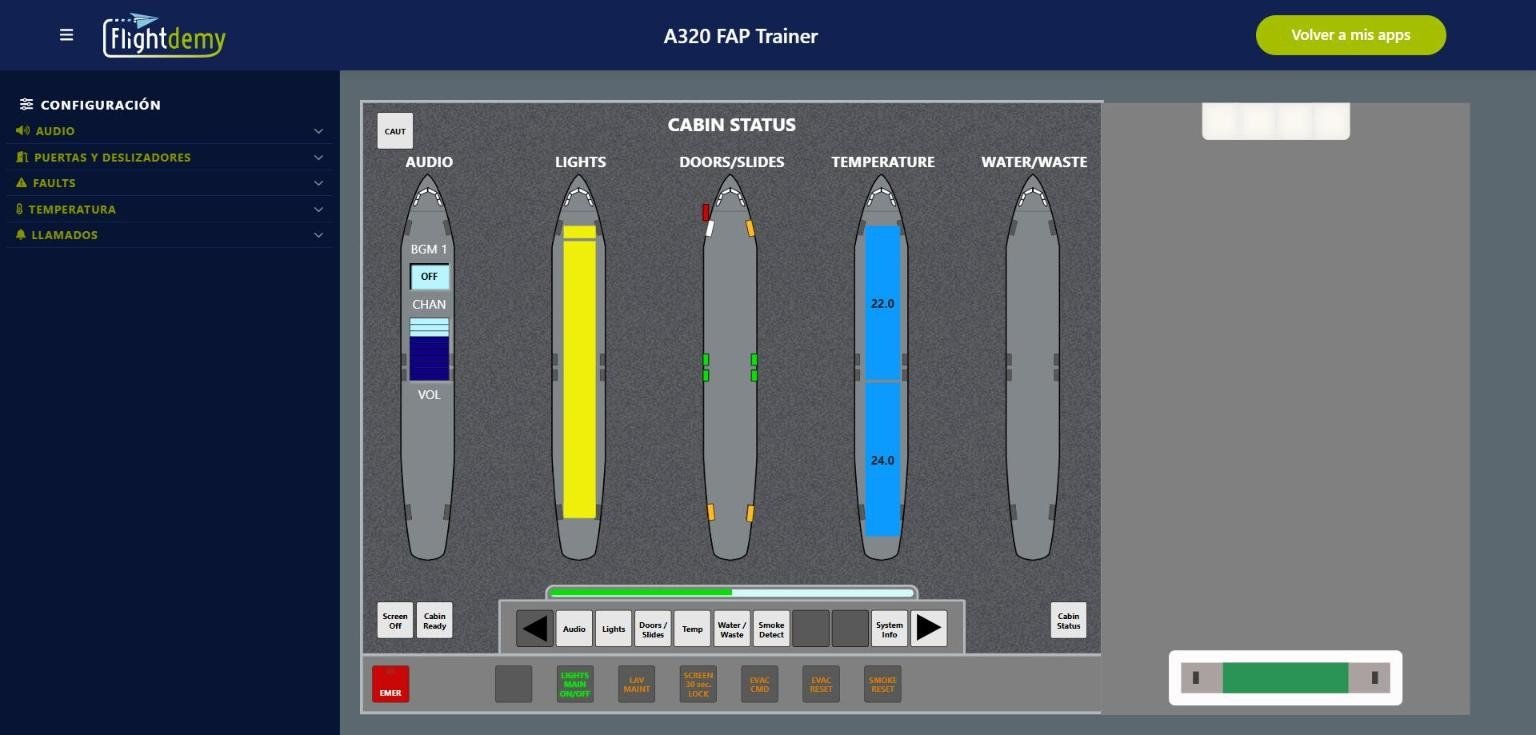
A320 FAP Trainer: sidebar, FAP, AIP and ACP

The app: scenario sidebar on the left, the FAP in the center, and the ACP and AIP on the right.

What this guide covers

This guide covers using the app: opening it from My Apps, the FAP screen, the sidebar and the App Configurator, where you customize the visible panels, the cabin, the ACP colors, your announcements, music and logo.

Other FAP guides

  • Hardware integration: if you have a cabin simulator or mock-up, the Hardware add-on connects the FAP to your real switches, lights and mechanisms, and kiosk mode shows the FAP on the simulator computer without signing in. See A320 FAP Trainer - Kiosk mode and hardware.
  • FAP iOS Instructor Station: an iPad or tablet app the instructor uses to trigger faults, sounds, calls and commands without touching the trainer screen. See FAP iOS Instructor Station.
Opening the trainer from My Apps

Sign in to Flightdemy and go to My Apps in your account menu. You will see one card per trainer in your license, with its expiry date.

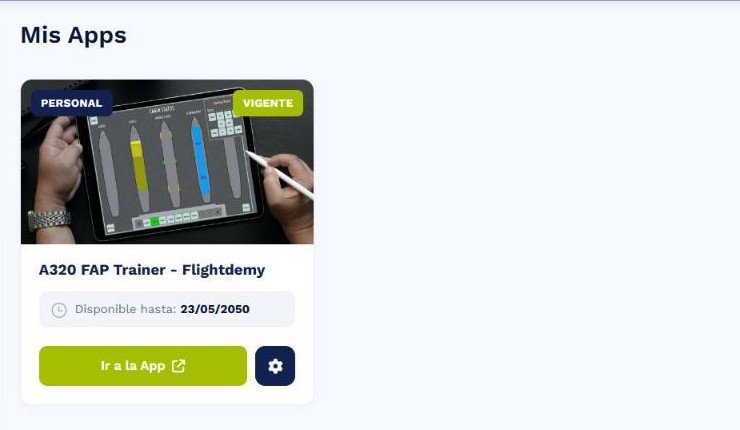
A320 FAP Trainer card in My Apps

The A320 FAP Trainer card: the green button opens the trainer and the gear opens the Configurator.

  • The green Go to app button opens the trainer in a new tab.
  • The gear button opens the App Configurator, where you customize your trainer.
  • Inside the app, Back to my apps returns you to this screen.

If the card is missing or shows as expired, check your license expiry date or contact us from the contact page.

The FAP screen

The center of the app is the FAP, organized like the real A320 panel.

Cabin Status

This is the home page: a cabin summary in five columns, Audio, Lights, Doors/Slides, Temperature and Water/Waste. From any page, the Cabin Status button brings you back here.

System pages

The bottom bar opens each page: Audio, Lights, Doors/Slides, Temp, Water/Waste, Smoke Detect and System Info. The arrows show a second group with Cabin Prog, Layout Select, Level Adjust, SW Download and FAP Set Up.

Next to the bar are Screen Off, Cabin Ready and Cabin Status, and at the top left the CAUT button, which lights up when there is a pending caution.

Bottom sub-panel

Below the FAP is the row of buttons from the real panel: EMER (emergency lights), LIGHTS MAIN ON/OFF, LAV MAINT, SCREEN 30 sec LOCK, EVAC CMD, EVAC RESET and SMOKE RESET. You can hide it in the Configurator if your physical cabin already has these controls.

AIP and ACP

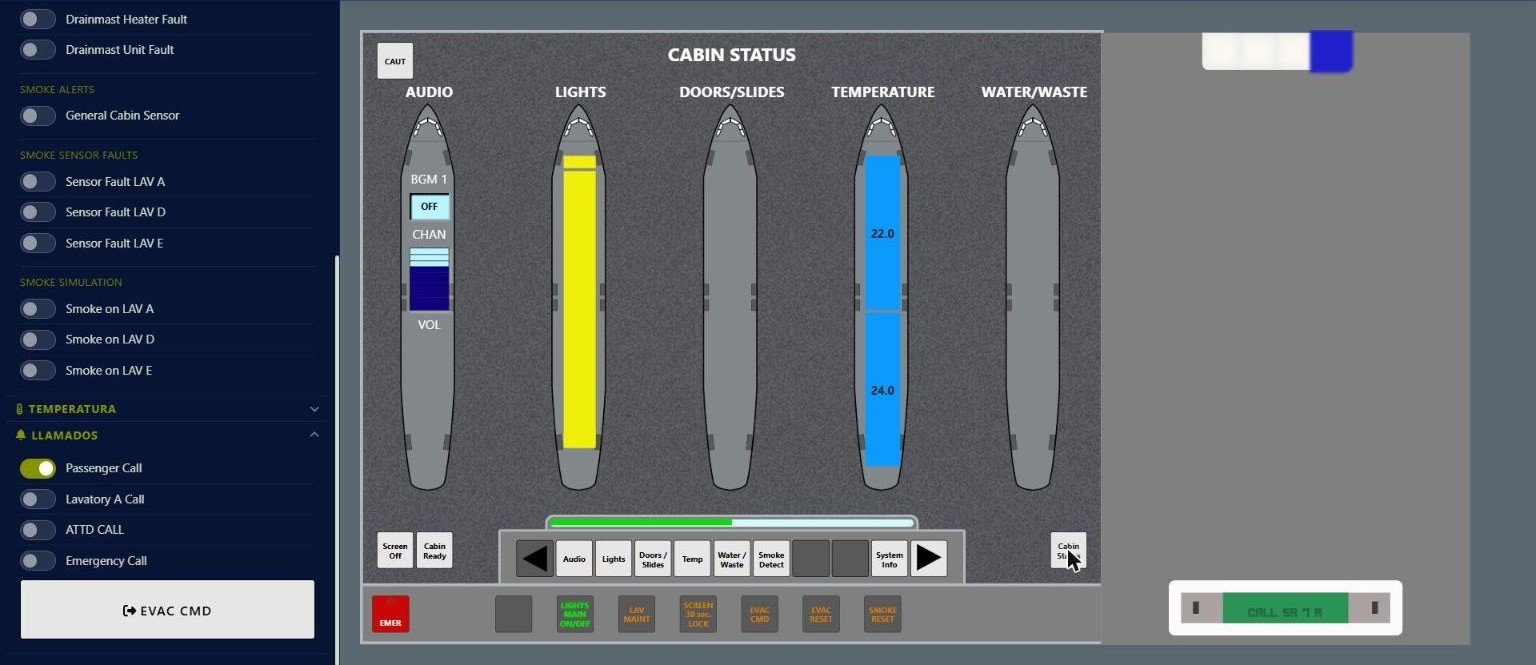
To the right of the FAP are the ACP (Area Call Panel) at the top, with color-coded call lights, and the AIP (Attendant Indication Panel) at the bottom, which shows the source of each call or alert as text. When you simulate a call or a smoke alert, all three panels react at once.

Passenger call on the ACP and AIP

A passenger call lights the blue ACP light and appears on the AIP.

Sidebar: audio, doors and calls

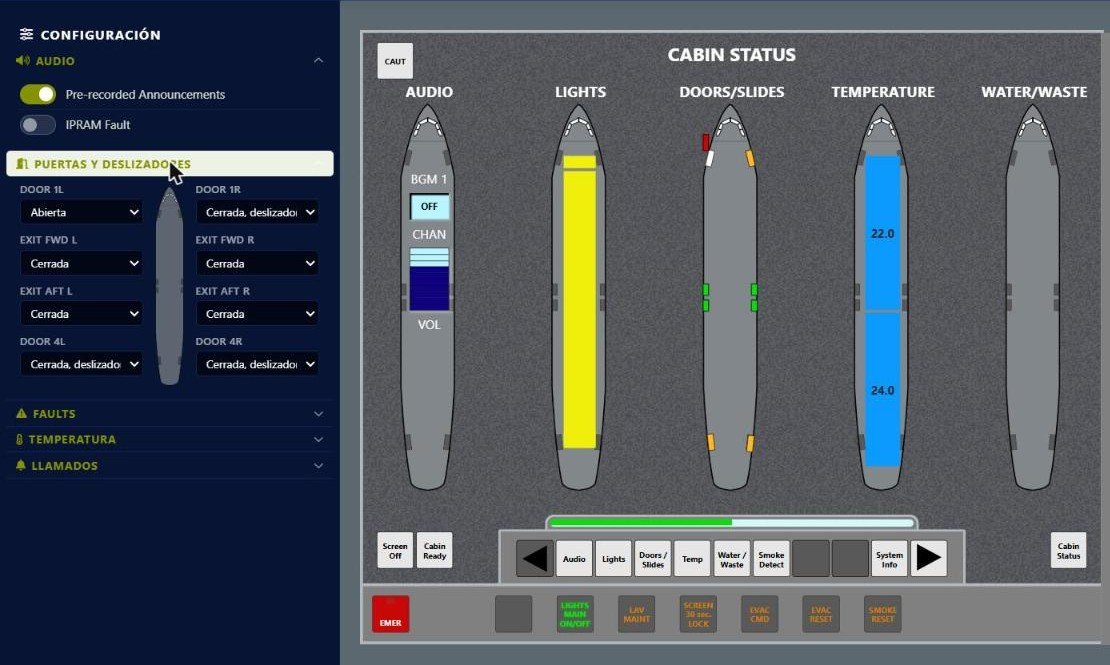
On the left of the app is the Configuration sidebar, where you set up training scenarios while using the FAP. Tap a section name to expand it. If you do not see it, check that Configuration Sidebar is enabled in the Configurator.

Audio and Doors sections of the sidebar

The Audio and Doors/Slides sections expanded.

Audio

  • Pre-recorded Announcements: shows or hides the pre-recorded announcements module on the FAP Audio page.
  • IPRAM Fault: simulates removing the IPRAM card, which disables pre-recorded announcements. When you turn it off, the system simulates a reboot and the module takes a few seconds to become available again.

Doors and slides

Each door has its own drop-down. The four main doors (1L, 1R, 4L and 4R) can be Open, Closed, slide disarmed or Closed, slide armed; the emergency exits (FWD and AFT, each side) can be Open or Closed. The change shows instantly on the Doors/Slides page and on Cabin Status.

Calls

Simulate Passenger Call, Lavatory A Call, ATTD CALL and Emergency Call; the EVAC CMD button triggers the evacuation command with its alarm. Each call lights its color on the ACP, appears on the AIP and shows the matching indication on the FAP.

Sidebar: faults, smoke and temperature

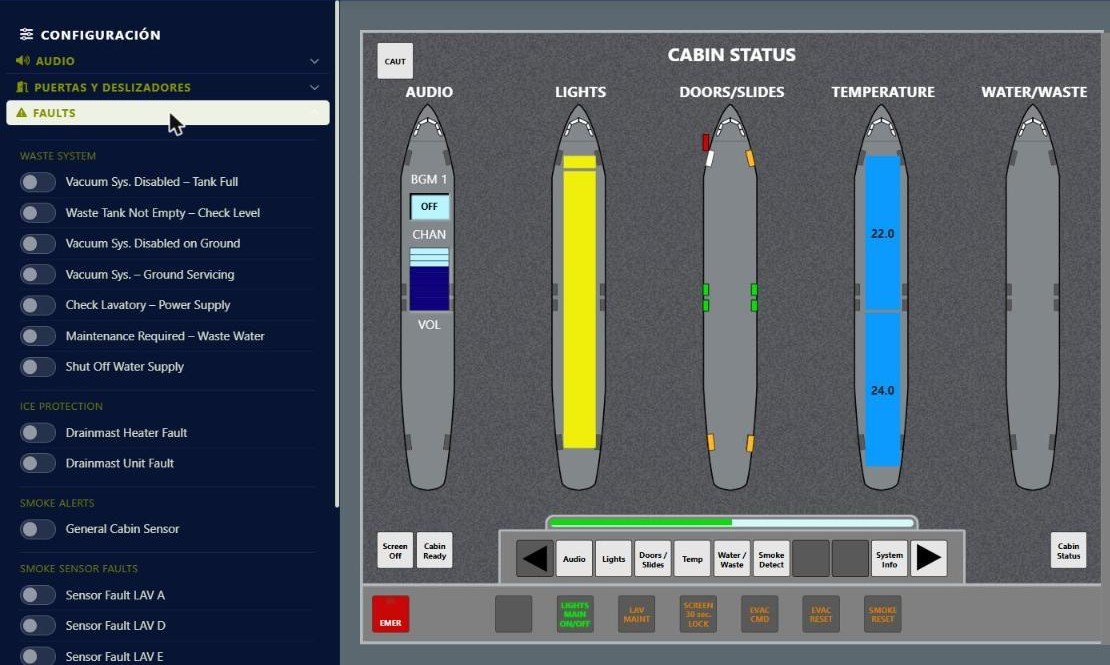
The Faults section of the sidebar groups the faults you can introduce during a session, by system.

Faults section of the sidebar

The Faults section with waste system, ice protection and smoke detection faults.

Waste system and ice protection

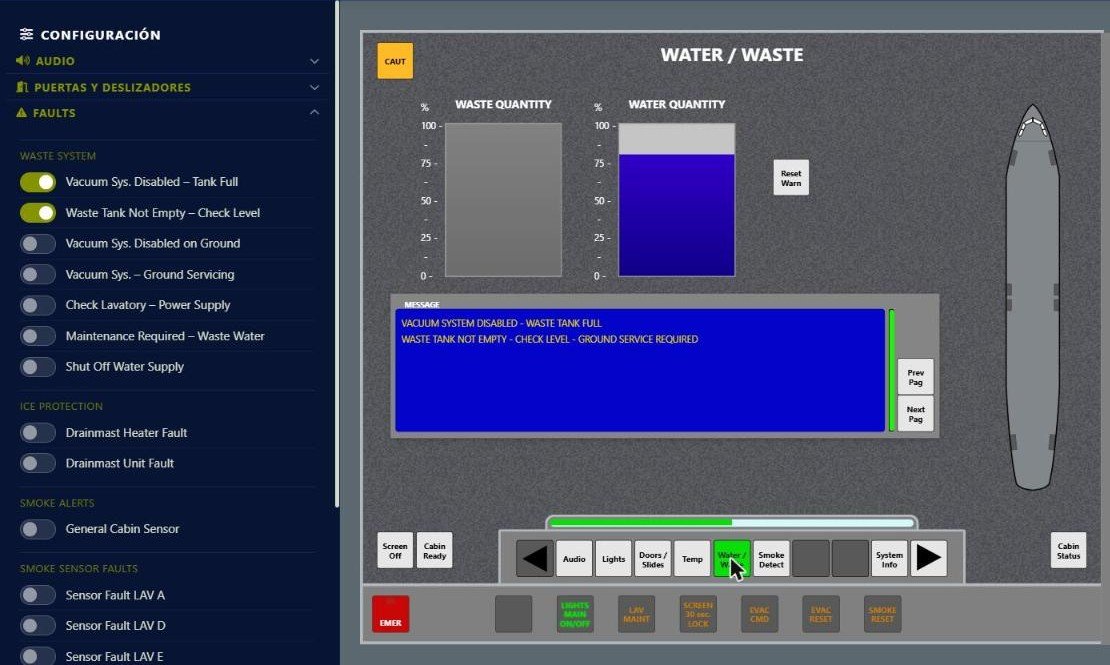
Seven water and waste faults (for example Vacuum Sys. Disabled – Tank Full or Shut Off Water Supply) and two ice protection faults (Drainmast Heater Fault and Drainmast Unit Fault). When active, the messages appear on the Water/Waste page, CAUT lights up and, depending on the fault, they are also logged in System Info.

Fault messages on the Water/Waste page

With a waste fault active, the Water/Waste page shows the message and CAUT lights up.

Smoke detection

  • Smoke alerts – General Cabin Sensor: simulates the general cabin sensor.
  • Smoke sensor faults: introduces a fault in the sensor of each lavatory (LAV A, D and E).
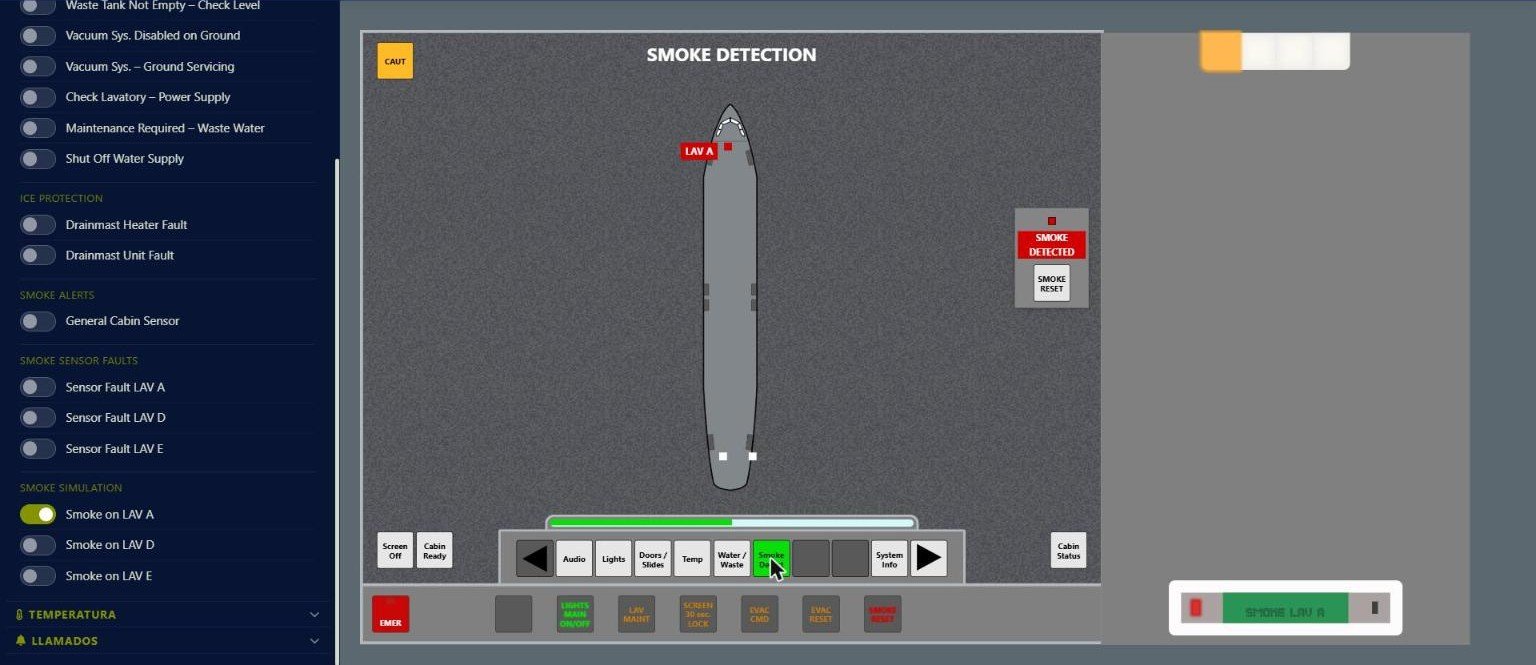
  • Smoke simulation: simulates smoke in a lavatory. Alerts trigger on the FAP, ACP and AIP, and the crew handles them with SMOKE RESET.
Smoke simulation in lavatory A

Smoke on LAV A: alert on the Smoke Detection page, ACP light and SMOKE LAV A on the AIP.

Temperature

The Temperature section simulates the loss of temperature data: No temperature data available, No temperature select available and No cabin temperature available. As in the real aircraft, the crew cannot change the temperature from the FAP; these faults are for practicing how to read the cautions.

Configurator: General tab

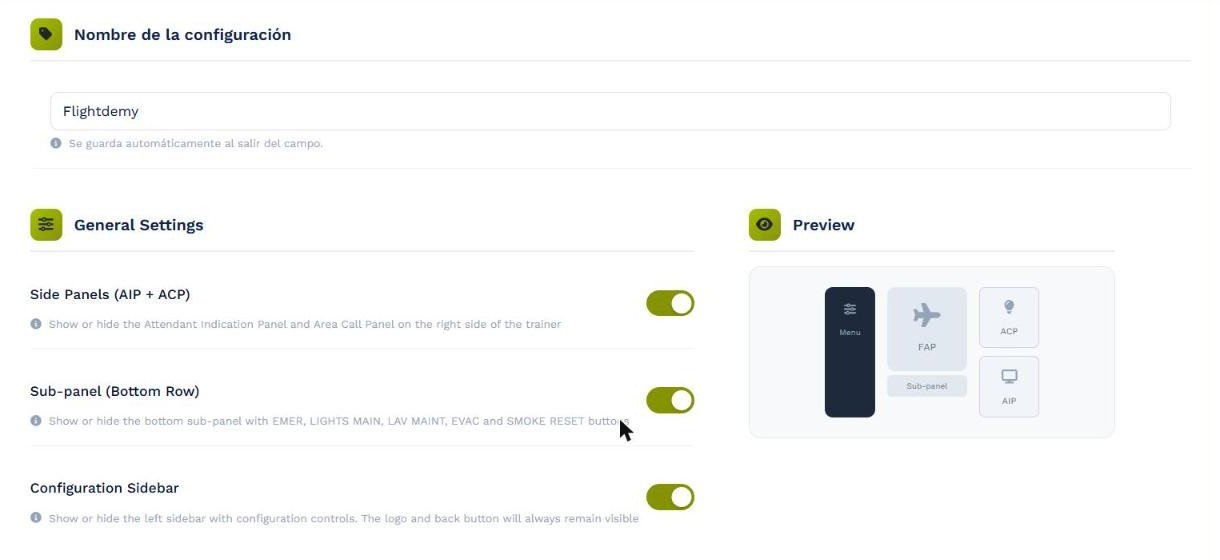
The App Configurator opens from My Apps with the gear button. It has seven tabs: General, Splash Screen, Cabin Layout, Area Call Panel, Announcements, Background Music and Hardware (the last one with the hardware add-on; see the Kiosk mode and hardware guide).

Changes are saved with Save configuration and apply the next time you load the trainer. The configuration name is the exception: it saves automatically when you leave the field.

General tab of the Configurator with preview

The General tab: each switch updates the preview on the right.

Side Panels (AIP + ACP)

Shows or hides the AIP and ACP to the right of the FAP. On a small simulator screen, hiding them gives the FAP more room.

Sub-panel (Bottom Row)

Shows or hides the row of buttons under the FAP (EMER, LIGHTS MAIN, LAV MAINT, EVAC and SMOKE RESET). Hide it if your physical cabin already has these controls.

Configuration Sidebar

Shows or hides the app configuration sidebar. The logo and back button remain visible even when it is hidden.

Configurator: Splash Screen, Cabin Layout and ACP

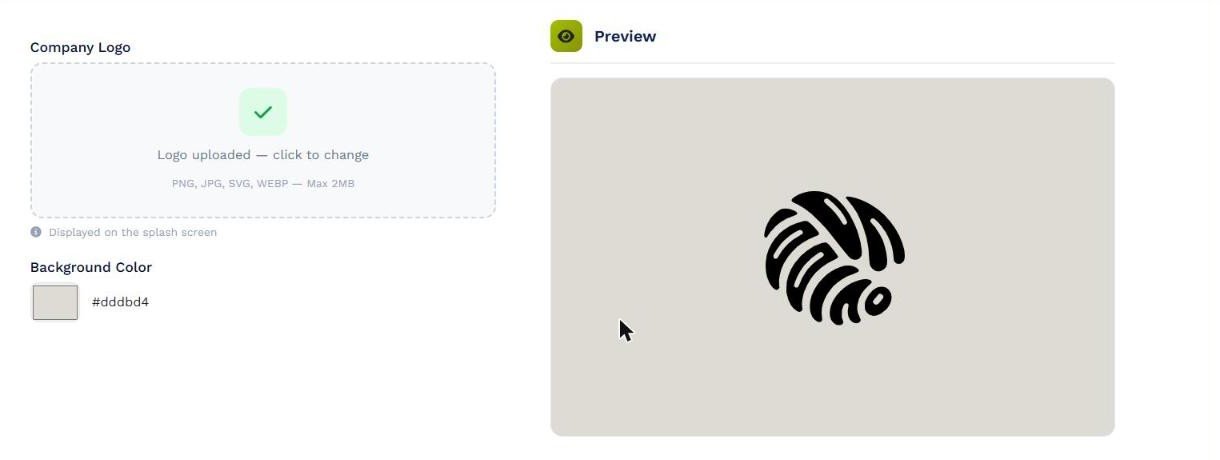
Splash Screen

Upload your company logo (PNG, JPG, SVG or WEBP, up to 2 MB) and choose the background color. This is the screen shown while the trainer loads. The preview shows the result.

Splash Screen tab of the Configurator

Splash Screen: company logo, background color and preview.

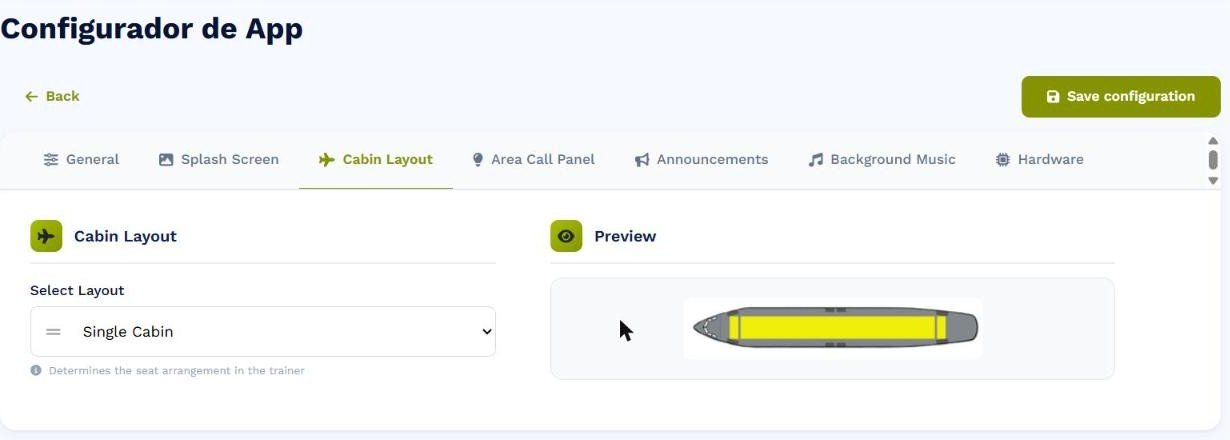
Cabin Layout

Choose the cabin layout the trainer uses: Single Cabin, Business + Economy or CTD Single. It affects the pages that draw the cabin, such as Cabin Status or Lights.

Cabin Layout tab of the Configurator

Cabin Layout with a preview of the selected layout.

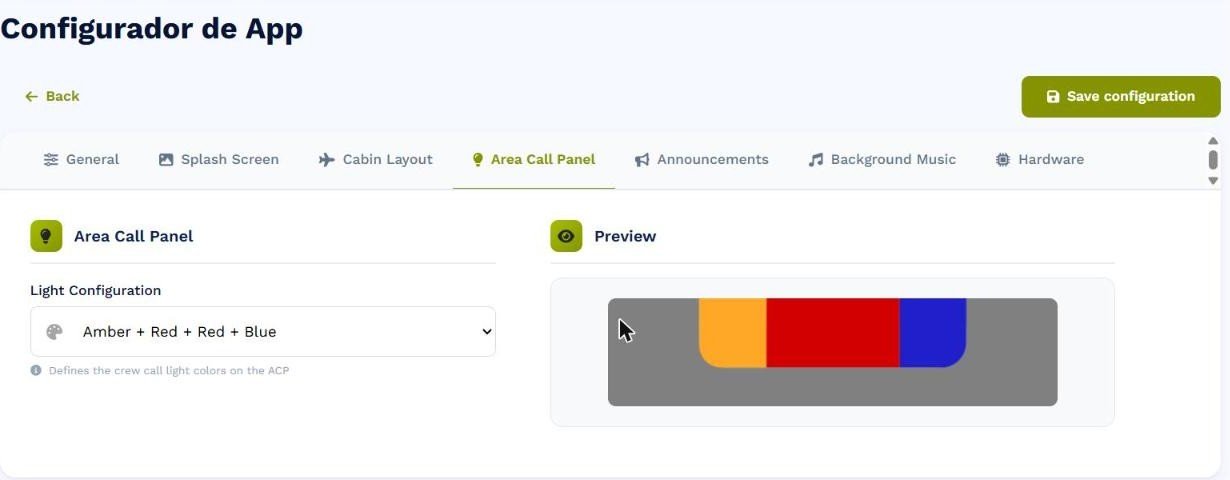
Area Call Panel

Set the ACP call light colors to match your fleet: Amber + Red + Red + Blue or Amber + Pink + Pink + Blue.

Area Call Panel tab of the Configurator

Area Call Panel: color combination and preview.

Configurator: announcements and background music

Announcements

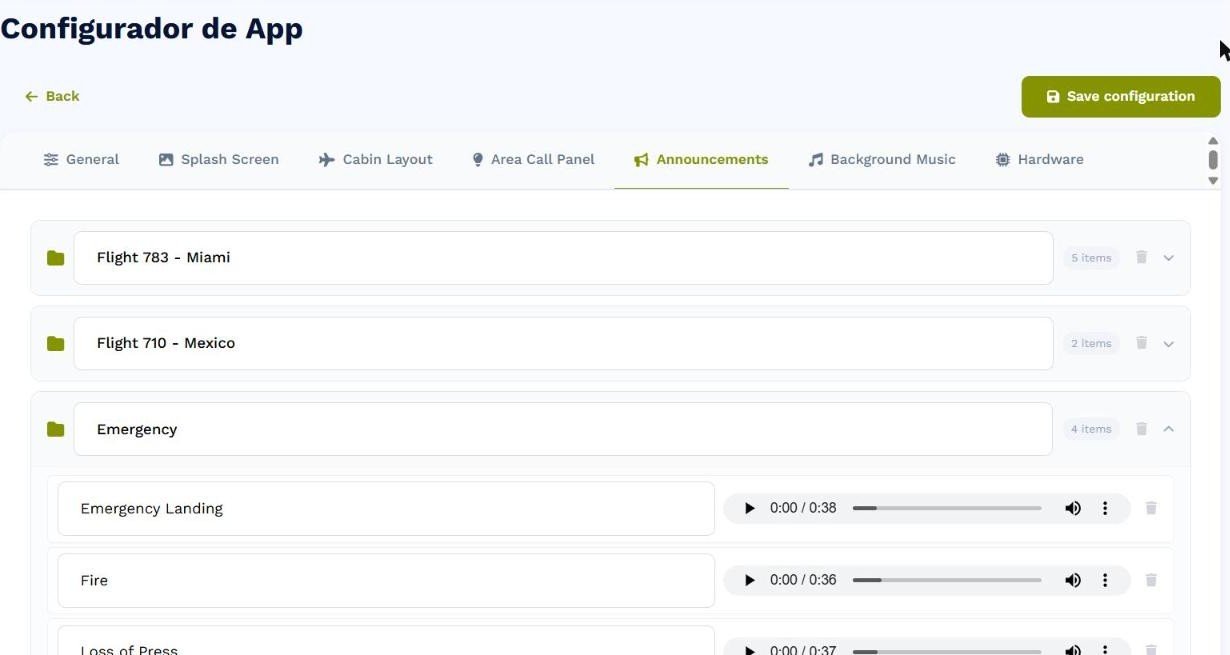
Upload your own cabin announcements to use on the FAP Audio page. Organize them in folders with Add folder, for example by flight or by type (normal and emergency), and add each audio file with Add announcement. You can rename folders and announcements, play them and delete them.

Announcements tab with announcement folders

Announcements: folders with a player to listen to each file.

Background Music

Works like Announcements: folders with the boarding and ambient music tracks that play on the FAP. The configuration includes a Default Music folder with sample tracks you can keep or replace.

Use MP3 or WAV files with short, clear names, since those are the names the crew sees on the FAP. Remember to press Save configuration when you are done.

Troubleshooting

I cannot find the FAP Trainer in My Apps

Check that you are signed in with the account that holds the license and check its expiry date on the card. If it does not appear, contact us from the contact page.

I made changes in the Configurator and do not see them

Press Save configuration and reload the trainer with a hard refresh (Ctrl+Shift+R on Windows, Cmd+Shift+R on Mac). Changes apply the next time the app loads.

There is no sound

Browsers require a first gesture to enable audio: tap or click anywhere on the FAP. Also check the computer volume, that Pre-recorded Announcements is on and that IPRAM Fault is off in the sidebar.

I do not see the sidebar, AIP/ACP or sub-panel

They are hidden in the Configurator, General tab. Enable Configuration Sidebar, Side Panels or Sub-panel and save.

A fault or alert does not clear

Turn it off in the sidebar. Smoke alerts are also acknowledged with SMOKE RESET and the evacuation with EVAC RESET.

Using the FAP in a physical simulator? See the A320 FAP Trainer - Kiosk mode and hardware guide.

Didn't find what you were looking for?

Our team is ready to help. Reach out via our contact page and we'll get back to you as soon as possible.

Contact us