
The Screen controller card in the Hardware tab defines how the computer that shows the FAP in kiosk mode behaves.
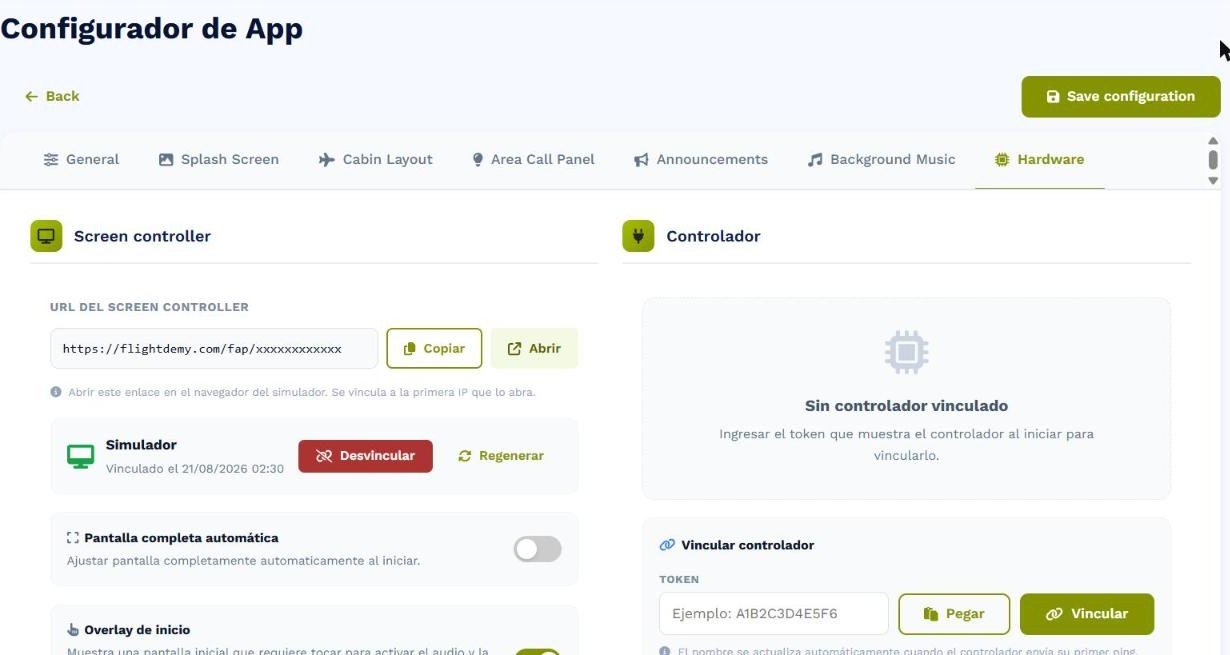
The Hardware tab: Screen controller on the left and Controller on the right.
Screen controller URL
This is the kiosk mode link. Copy puts it on the clipboard and Open opens it in a new tab. Below it you will see the paired device and the pairing date:
- Unlink releases the link: it stays valid, but will pair with the next device that opens it.
- Regenerate creates a new link and invalidates the old one and the paired device. Use it only if you think someone else knows your link.
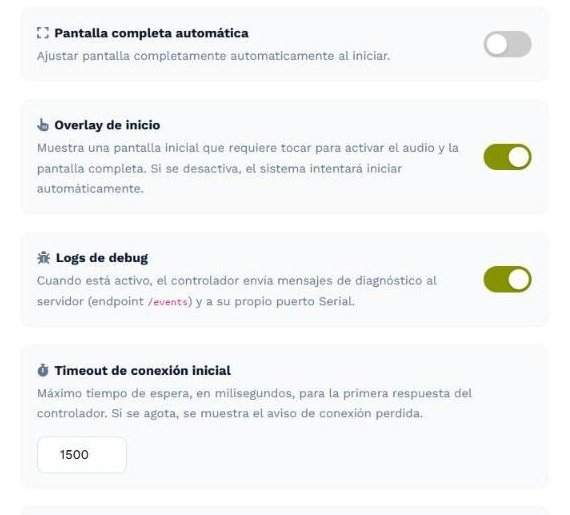
Screen controller settings: full screen, start overlay, logs, timeout and grace period.
Settings
- Automatic full screen: the browser goes full screen on the first tap. It cannot happen without that tap: it is a browser restriction.
- Start overlay: shows the FAP Screen with the Start button, which enables audio and full screen. If you disable it, the system tries to start on its own; test it on your computer, since some browsers block audio without that gesture.
- Debug logs: the controller sends diagnostic messages to the server and to its Serial port. Enable it if support asks you to.
- Initial connection timeout: maximum time, in milliseconds, the kiosk waits for the controller’s first reply before showing Connection lost. Default 1500; raise it to 3000–5000 on a slow network.
- License grace period: extra time, in seconds, the controller keeps working if the license or the add-on stop being active, for example during a renewal.