What hardware integration is
Hardware integration connects the A320 FAP Trainer to a real cabin simulator or mock-up. The FAP is shown on a screen installed in the cabin, in kiosk mode, and a controller board links it to your hardware: the physical seat belts switch changes the FAP instantly, annunciators and lights turn on in your panel, and the instructor can trigger smoke machines or oxygen masks. It requires the Hardware add-on on your license.
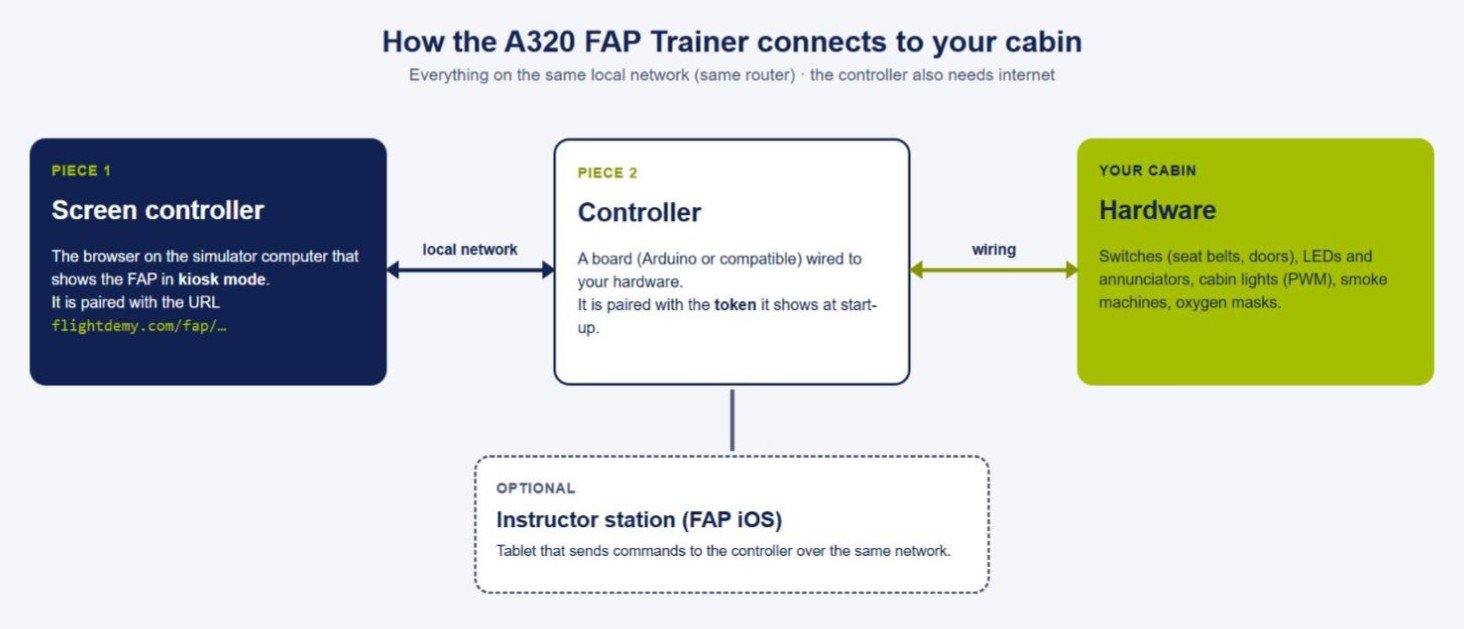
The pieces of a hardware installation.
This guide covers kiosk mode, the add-on, pairing the screen controller and the controller, and how to solve common problems. For using the app itself, see the A320 FAP Trainer user guide.
Kiosk mode
Kiosk mode opens the FAP full screen and without signing in, for the computer installed in your simulator or mock-up. It does not show the sidebar: the scenario is controlled from the app, the instructor station or the hardware.
Where to find the link
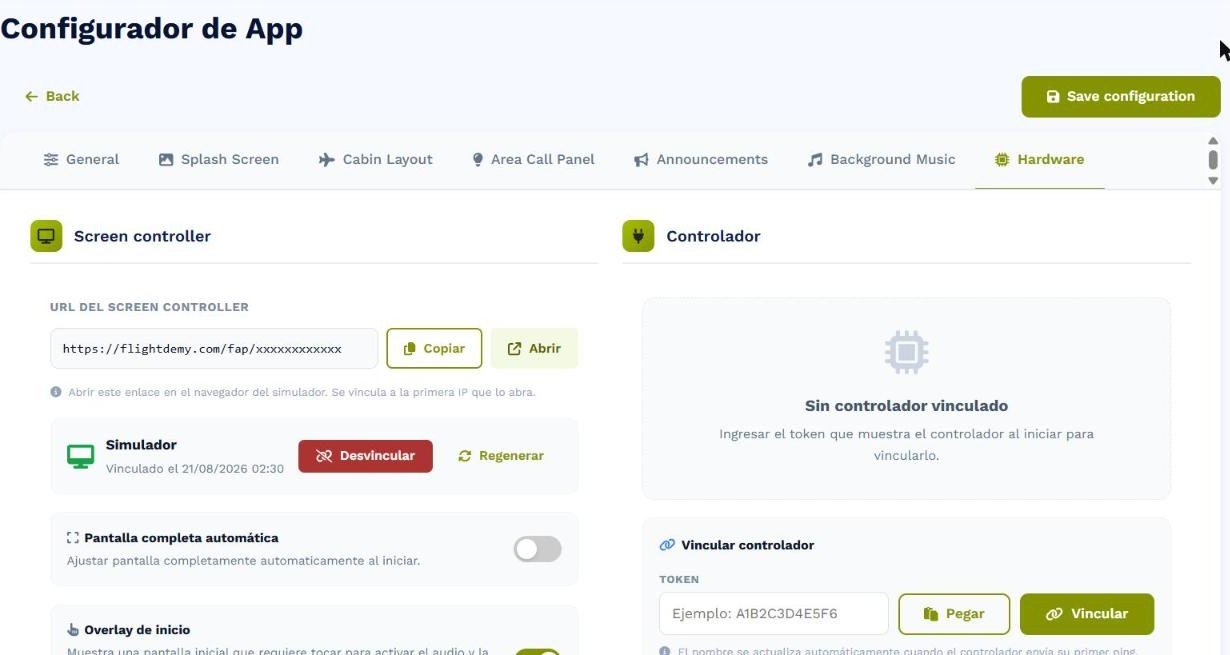
Each license has a personal link like flightdemy.com/fap/…. You will find it in the Configurator, Hardware tab, as the Screen controller URL. Use Copiar (Copy) to take it to the simulator computer and set it as the browser home page or shortcut.
The first-device rule
For security, the link is paired with the first device that opens it. From then on only that device can use it; any other will see a notice that the code is already paired. To change device, press Desvincular (Unpair) in the Hardware tab and open the link on the right device. If you think someone else knows your link, use Regenerar (Regenerate) to create a new one and invalidate the old one.
Start-up
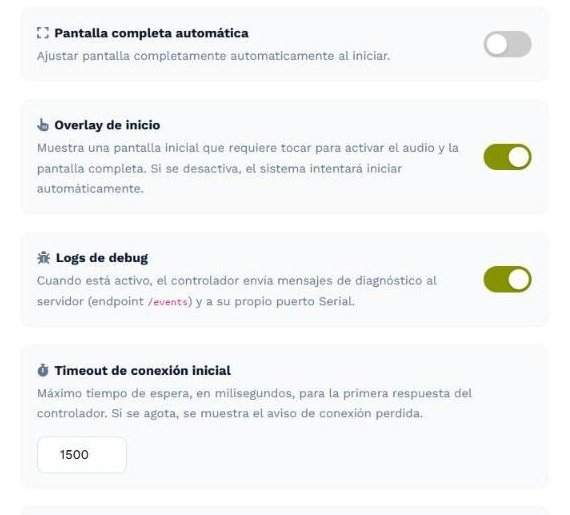
With the start overlay enabled, the kiosk starts with the FAP Screen screen: tap Comenzar (Start) to enable audio and, if configured, full screen. Browsers require this first tap, so it cannot be skipped entirely.
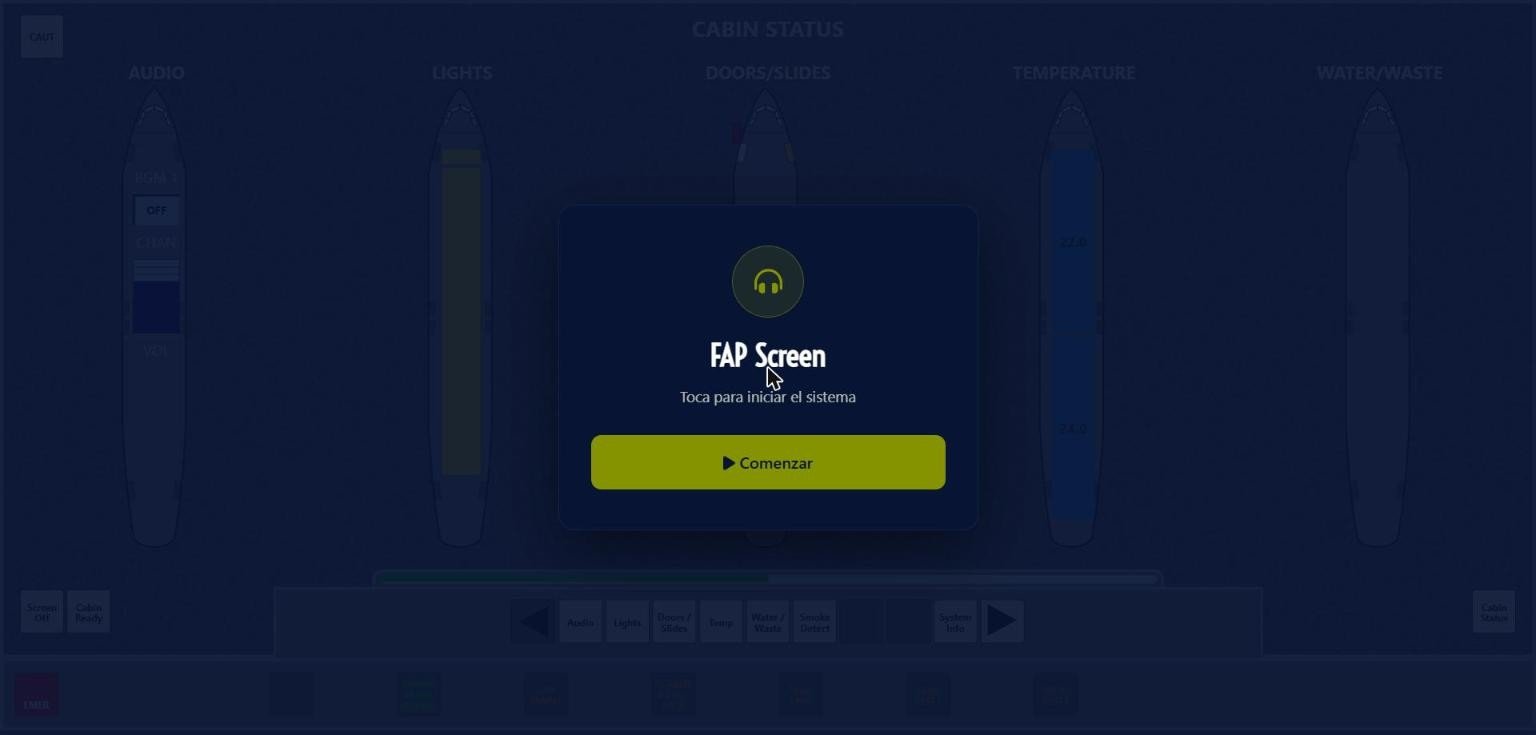
The kiosk start screen: one tap enables audio and full screen.
If your license includes the hardware add-on, the kiosk tries to reach the controller at start-up. If it cannot, it shows Conexión perdida (Connection lost): Reconectar tries again and Continuar offline opens the FAP without hardware.
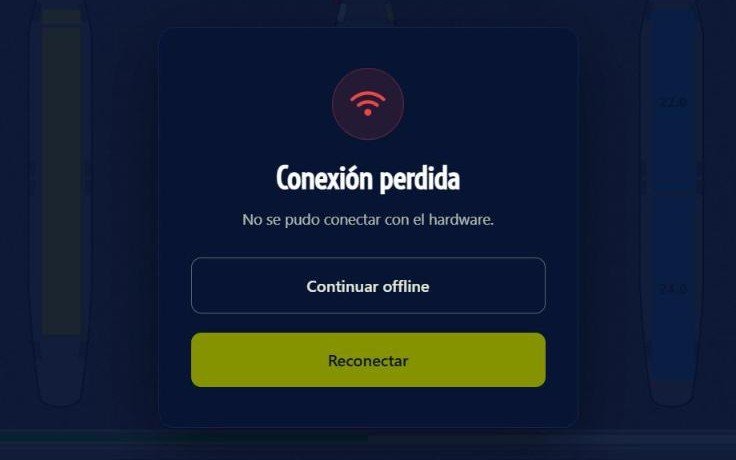
The connection lost notice appears when the kiosk cannot find the controller.