Open your progress page
Step 1: Go to "My courses". Log in, click your name in the top right corner to open the user menu and select "My courses".
Step 2: Find your course. In "My courses" you will see all the courses you are enrolled in.
Step 3: Open the progress page. On the course card, click "Progress" to see detailed information about how you are doing.
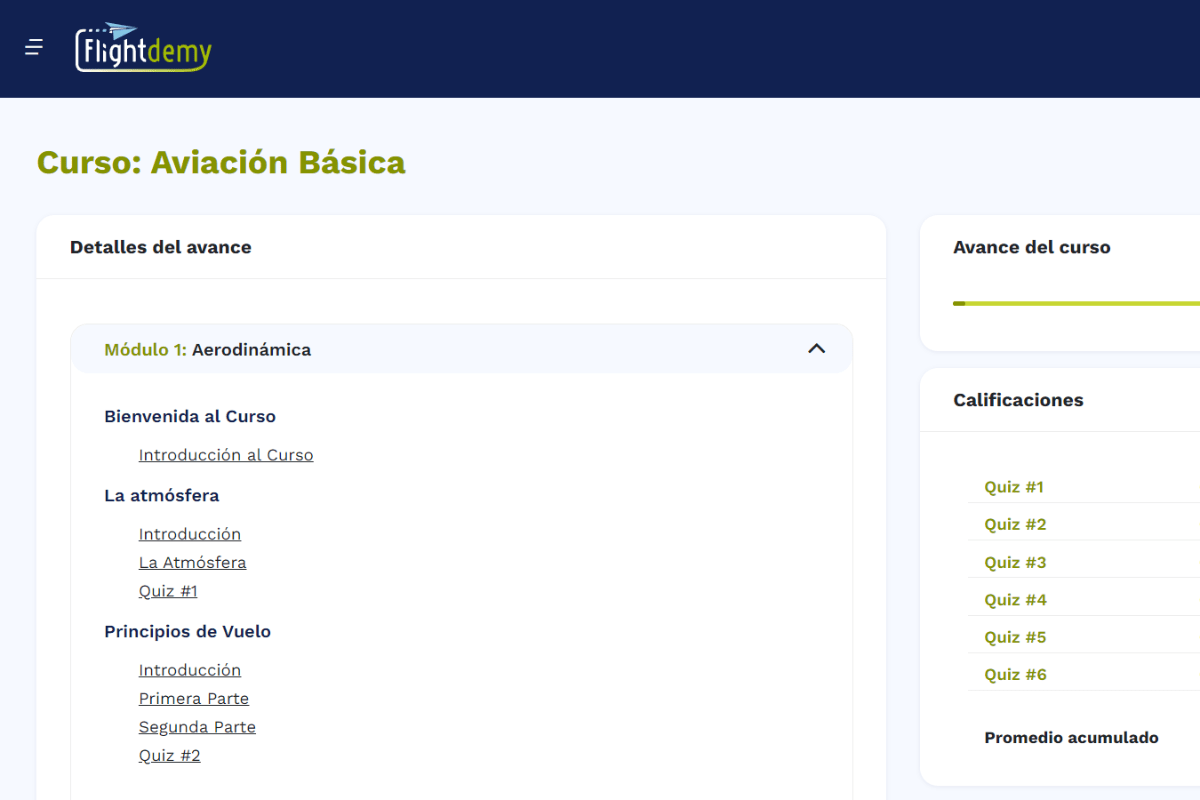
The progress page is divided into the following sections.
Lessons
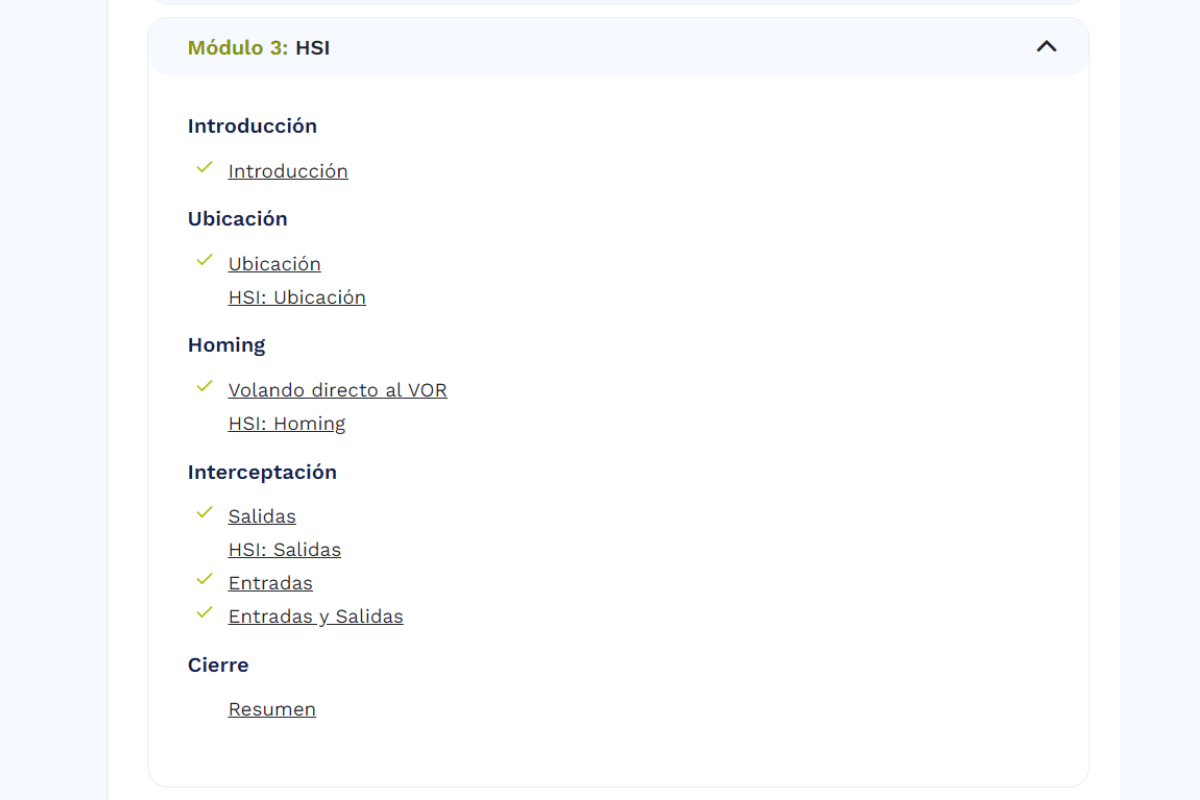
On the left you will see all the course modules. Click a module title to expand its lessons and content. Completed lessons show a green check mark; lessons without it are still pending.
Overall progress
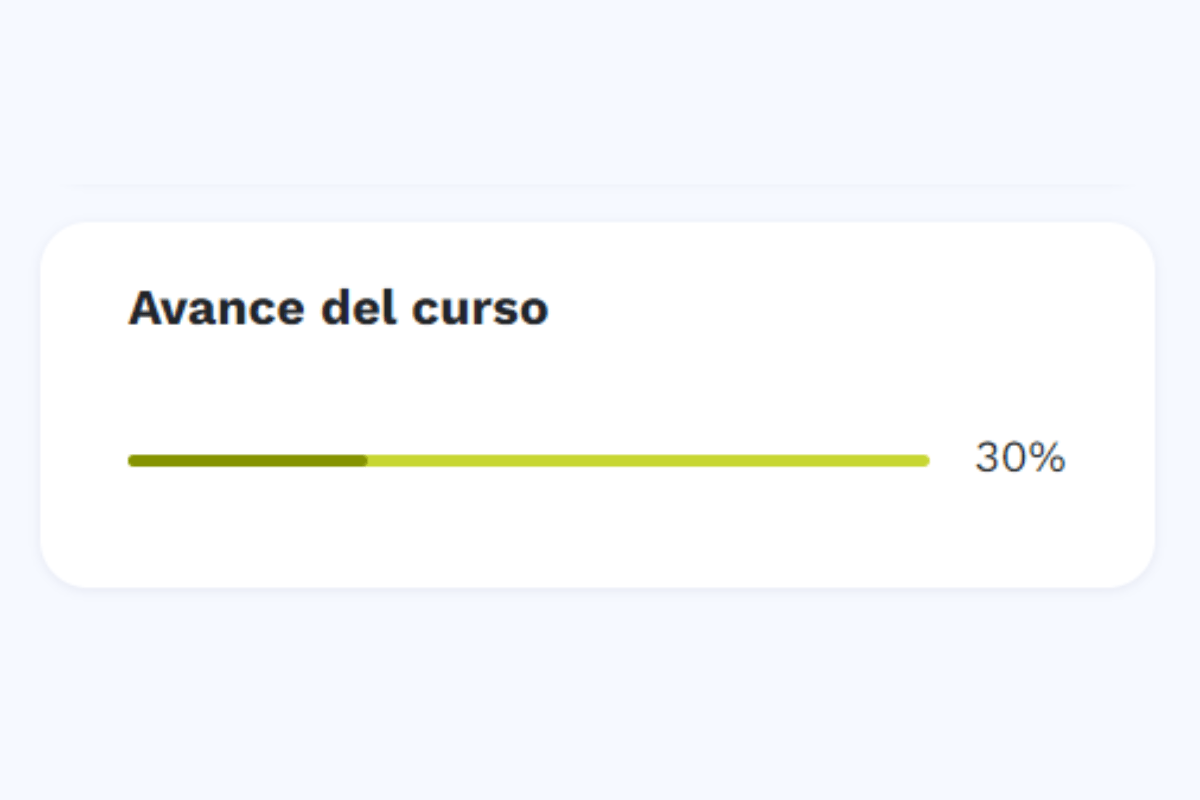
On the right, a box shows your overall progress as a percentage, based on all the lessons and modules you have completed so far.
Assessments and grades
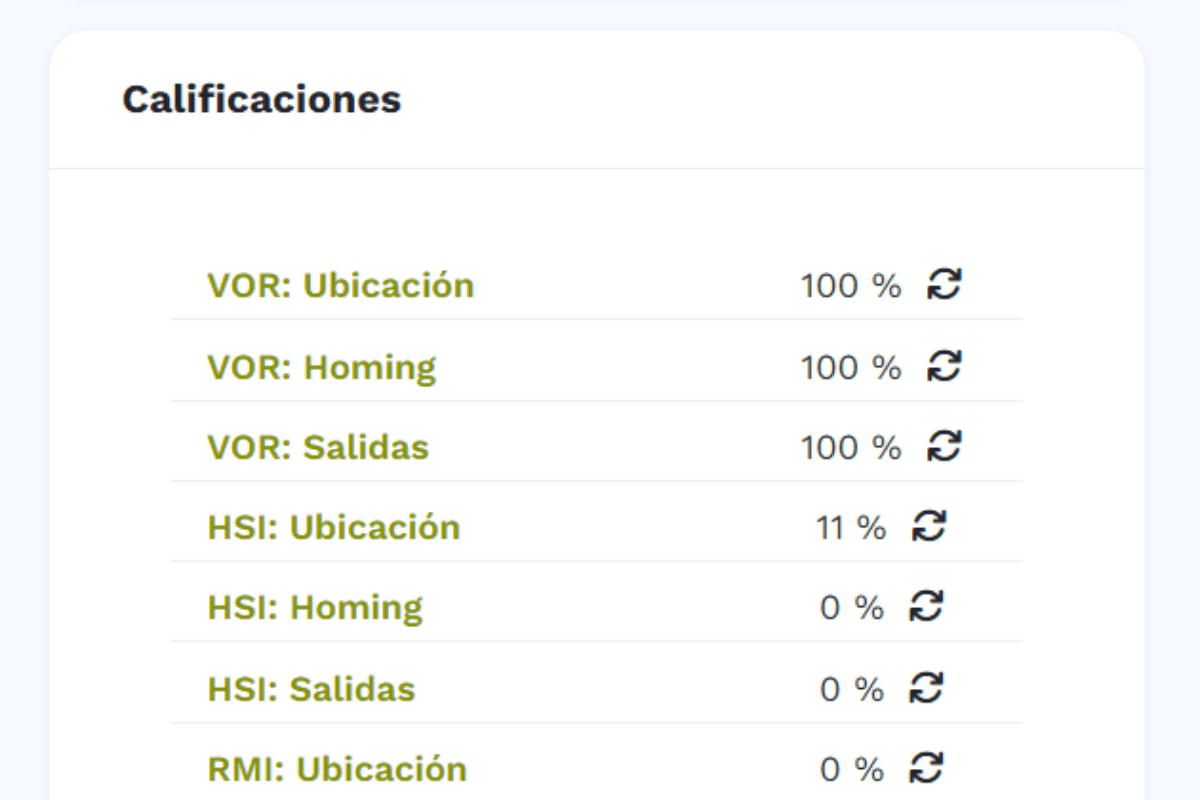
Just below your overall progress you will see the course assessments, with the grade for each one and your overall course grade at the end of the list.
If you have questions about your progress, write to us at info@flightdemy.com.